> For the complete documentation index, see [llms.txt](https://docs.nara.stream/llms.txt). Markdown versions of documentation pages are available by appending `.md` to page URLs; this page is available as [Markdown](https://docs.nara.stream/using-the-app-core-features/metadata-view.md).
# Metadata View
Nara allows you to access all the metadata for the currently selected media file. To view the available metadata you need to open the right-hand panel by clicking on the **Metadata View** button at the right-hand side of the bar at the top of the media browser view:
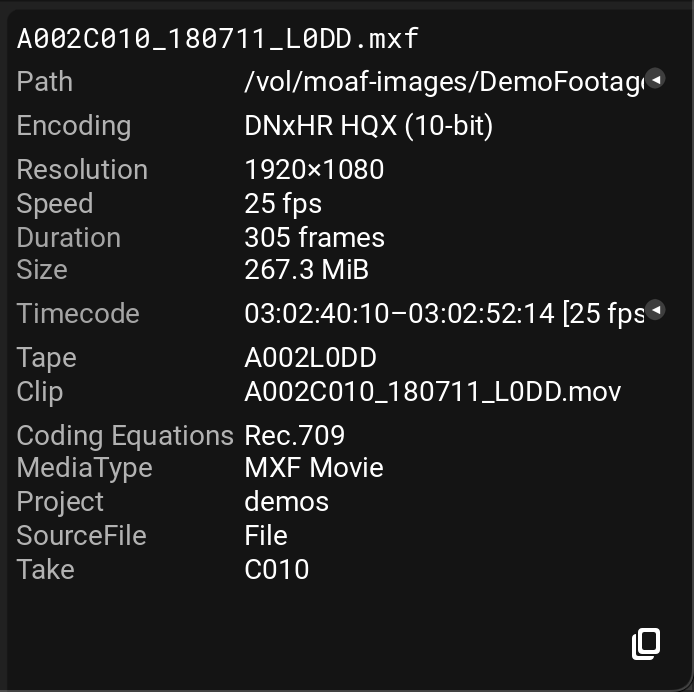
The Metadata View shows all the values for the currently selected media file:
{% hint style="info" %}
If more than one media file is currently selected, then metadata for the one with the brighter blue outline (the last one you clicked on) will be displayed.
{% endhint %}
Note that the metadata is read from the header of the media file - the actual fields available will depend on the file format.
## Exporting Metadata
All the metadata currently displayed in the Metadata View can be exported as text by clicking the **Copy to Clipboard** button at the bottom right-hand corner of the window: