# Client Notes
While you are playing back media you may want to add notes or comments. These can be added to an entire clip or just a single frame within a clip. Once notes have been added they are stored in the Nara database and will appear whenever the media is played back.
{% hint style="warning" %}
Note that notes are only stored within a [playlist](https://docs.nara.stream/using-the-app-core-features/playlists) - if you add them to a clip which is being played back from a selection made directly in the storage browser then they will not be saved unless you add the current playback selection as a new playlist.
{% endhint %}
To add a note to the current clip, click on the **Client Notes** button:
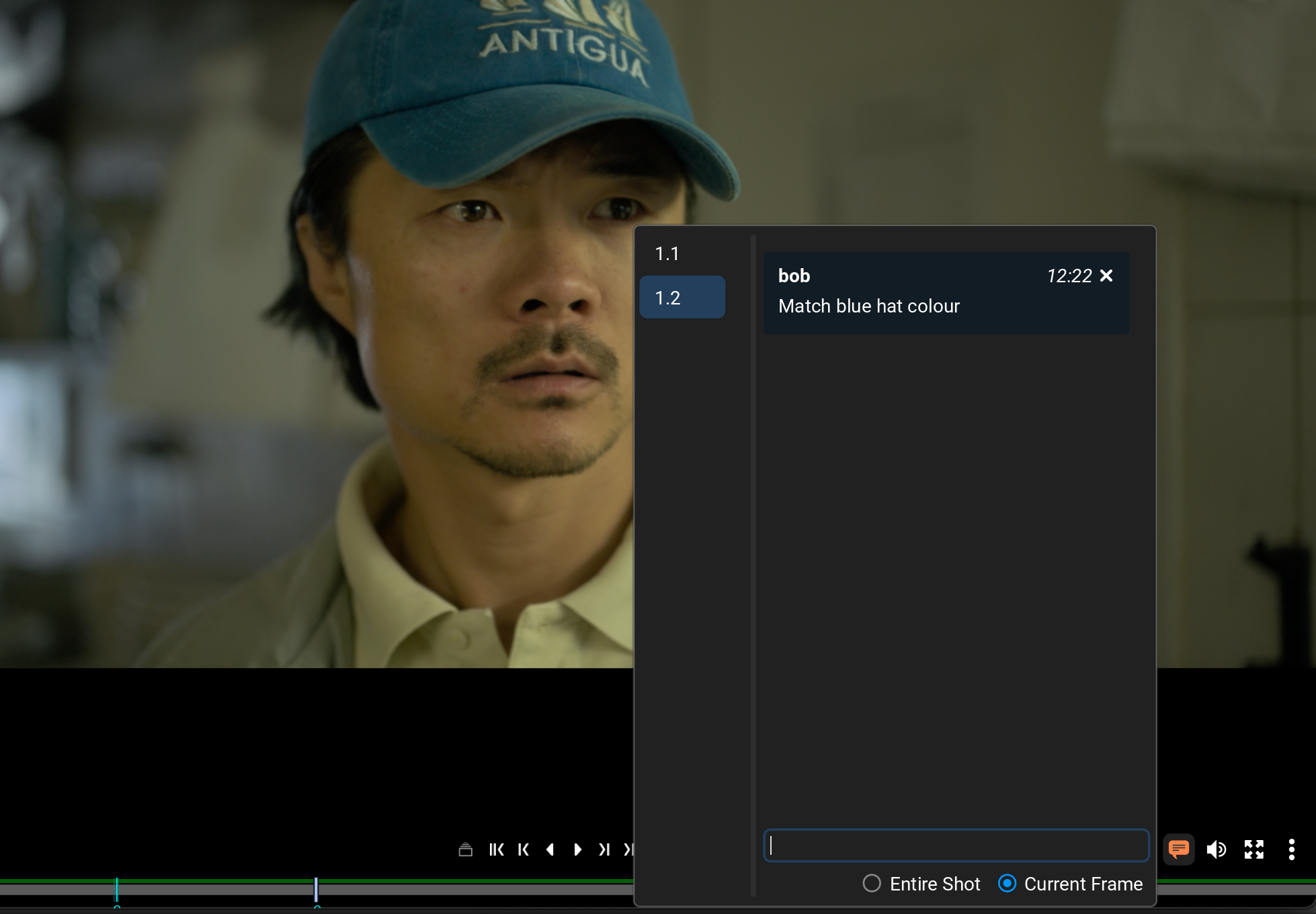
This will open the Client Notes window. Choose whether you want to add the note to the **Entire Shot** (this will be visible regardless of the playback position in the clip) or just the **Current Frame** - the text will appear as an entry in the notes list along with a time-stamp showing when the note was added:
More than one note can be added to a clip and multiple notes can also be added to a single frame - in the example above two notes have been added to this clip.
You can jump the cursor directly to a note by selecting its number in the left-hand column in the Notes window.
Click on the Notes button again to close the pop-up window. Note that the button will change to orange if there are notes set within the current playlist.
{% hint style="info" %}
Note that the position of frame notes is also shown by markers in the bar at the bottom of the playback window. You can jump between them without opening the Client Notes window by holding the **Shift** key and pressing **Z** or **X** on the keyboard.
{% endhint %}