> For the complete documentation index, see [llms.txt](https://docs.nara.stream/llms.txt). Markdown versions of documentation pages are available by appending `.md` to page URLs; this page is available as [Markdown](https://docs.nara.stream/using-the-app-core-features/markdown/sequence-list.md).
# Sequence List
This view is shown by clicking on the **list button** at the left end of the browser top bar:
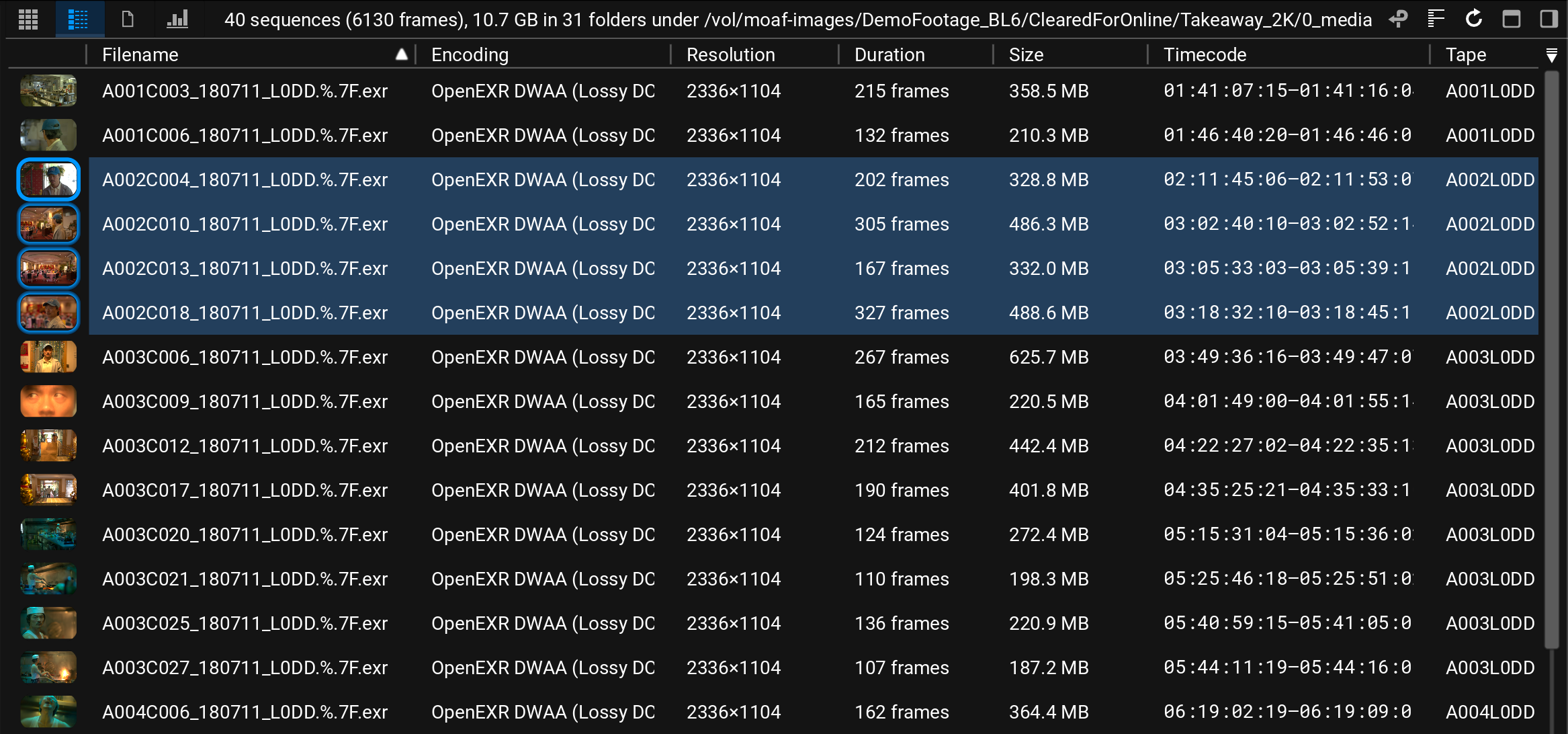
Each clip is shown on a different row in the list view. A small thumbnail is displayed at the left-hand end of the row followed by columns of metadata:
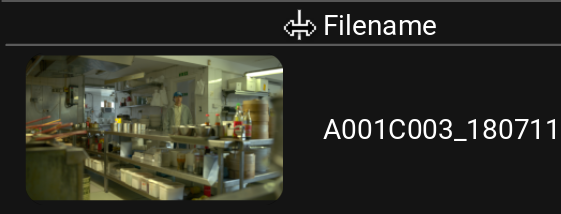
If you want to make the thumbnails bigger, click and drag on the small vertical divider at the right-hand side of the header at the top of the thumbnail column. The mouse pointer will turn into a double-headed arrow indicating that you can resize the column:
{% hint style="info" %}
To view the maximum number of rows within the browser window, drag the thumbnail column width as far left as it will go to shrink the thumbnails to their smallest size. Note that the width of all the other columns can be also be adjusted by dragging on the dividers between the column headers.
{% endhint %}
To change the metadata columns which are displayed, click on the **Toggle Columns** button at the top right-hand corner of the list view:
This will open a pop-up window allowing you to choose which metadata columns you want to see.
If you want to change the order of the columns, click on a column header and drag it to a different position. The order of the columns will be remembered even if you hide and later un-hide a column.
## Selecting Clips
* Clips are selected by clicking anywhere within a row and de-selected by **Ctrl**-clicking (**Cmd**-click on a Mac). The row for a selected clip is shown with a blue background and the thumbnail gets a blue outline.
* To select multiple clips, hold **Ctrl** (or **Cmd** on a Mac) and click on the rows want to add to the selection. **Ctrl**-clicking on a selected row will de-select that row.
* To select a range of clips, click on the first row and then **Shift**-click on the last one in the range.
* To select ***all*** the clips in the current folder, hold **Ctrl** (or **Cmd** on a Mac) and press **A**.
* To ***de***-select all, hold **Ctrl** (or **Cmd** on a Mac) and **Shift** and press **A**
* When multiple rows are selected they all get blue backgrounds, however the thumbnail for the last one you click on will have a brighter blue outline (the top selected row in the example above) - this is the 'current clip' and it's metadata will be shown in the [metadata inspector](/using-the-app-core-features/metadata-view.md) if the [right panel](/using-the-app-core-features/editor.md#right-panel) is visible. Clicking on another row within the selection will make it the current clip.
## Sorting the List
* To sort by a specific metadata column, simply click on the heading at the top of the column - a small white triangle will appear to the right of the column heading pointing up or down to indicate the order of the sort.
* Clicking on the heading for the current sort column will reverse the sort direction.
{% hint style="info" %}
The order of clips in the list view is reflected in the order of the clip thumbnails in the grid view. Switching between list and grid view will retain the current sort order.
{% endhint %}